
How It Works
1. Set Up Your Profile
- Sign Up: Create an account using your email and password.
- Verify Your Identity: To post on "Personality" pages or to qualify for Contributor Rewards, go to your settings and complete the ID verification and account set up to receive platform rewards.
- Set Your Location: Choose between a Global feed or a Local feed to see feedback and profiles relevant to your specific country.
2. Share Your First "Voice"
- Find a Page: Use the search bar to find the person, business, or product you want to review.
- Can't Find it? Create it: Click "Create Profile Page" to add a new entity to the platform.
-
Post Feedback:
- Select a Tag: Choose if this is a Complaint, Suggestion, Idea, or Fan Moment.
- Choose a Topic: Select specific areas like Quality, Service, or Price.
- Rate & Pin: Provide a star rating and, if relevant, drop a Google Pin to show exactly where an event or issue occurred.
3. Explore The Community
- Edit for Accuracy: Notice a business has updated its contact info? Click Edit on their profile page to update the details for the community.
- Lock a Page: If a profile page is complete and accurate, request a Lock. Once another user confirms, the info is secured!
- Follow Favorites: Tap the Star icon on your favorite pages in each category to save them to your personalized "Favorites" menu for quick access.
4. Manage Your Reputation (For Business & Public Figures)
- Claim Your Page: If a page exists for you, use the Claim feature to verify ownership.
- Link & Track: Link your page to your dashboard to see monthly statistics and feedback trends.
- Engage Directly: Subscribe to unlock Direct Messaging, allowing you to chat privately with users who leave feedback on your linked pages to resolve issues or say thank you.
5. Earn Rewards
- Contribute: Every new page created, helpful review posted, and edit made earns you points.
- Get Paid: The platform periodically converts these points into monetary rewards for verified users, funded by portion of the platform ad revenue.
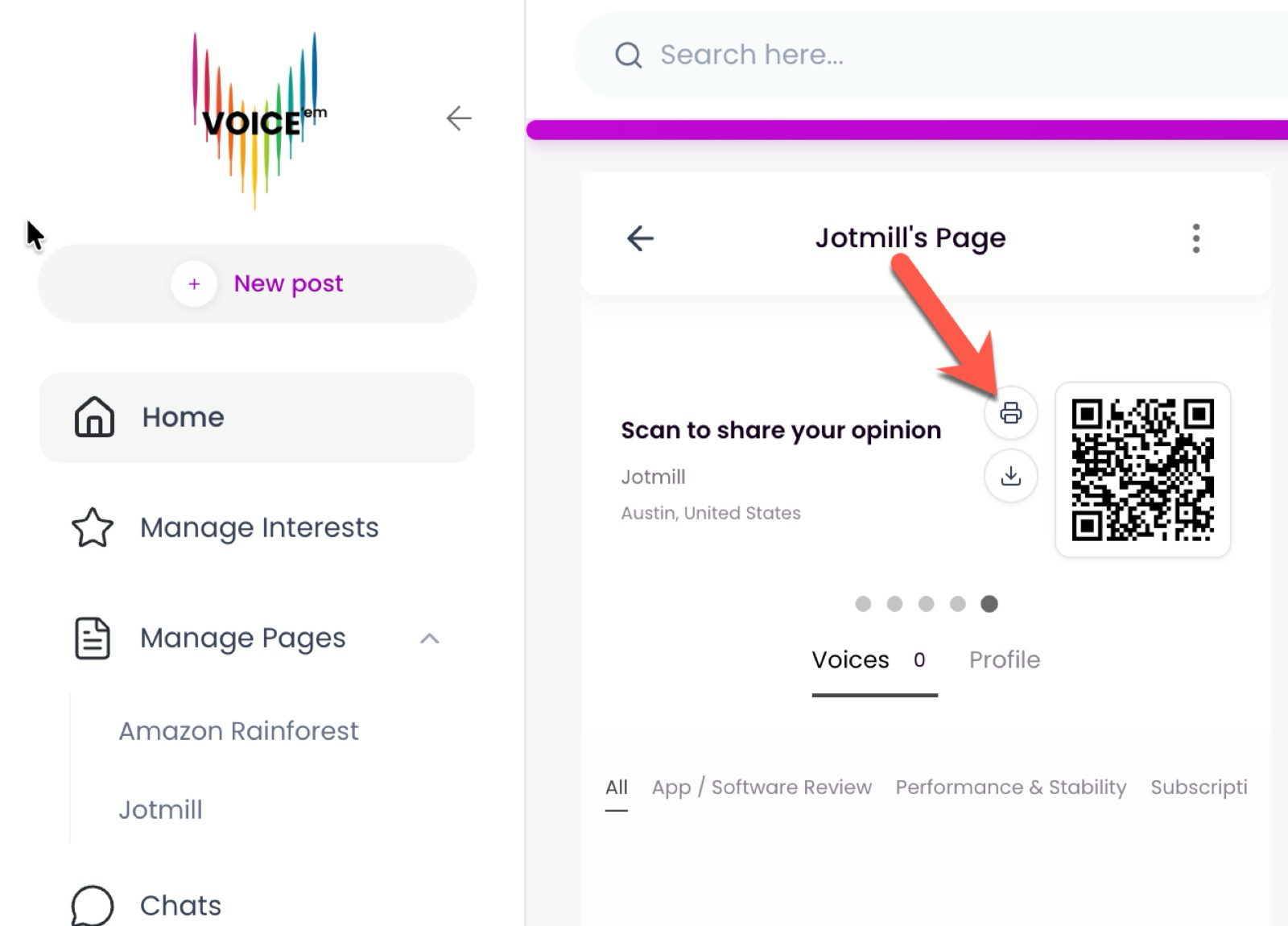
Pro Tip: Download the QR Code from any profile page to share it on social media or print it out. It's the fastest way to invite others to join the conversation!
6. How To Effectively Use The App & Its Typical Use Cases
Please refer to attached PDF to see use case examples of various feedbacks in different categories on VOICE'em.
7. "Community Guidelines" Post
To ensure VOICE'em remains a high-quality data source and a helpful community, we've created these guidelines to help you turn your thoughts into "Constructive Feedback." Constructive feedback is more than just an opinion, it is information that provides a path toward improvement.
8. What Is Destructive Feedback
- Vague: "This place is bad." This doesn't tell the business what to fix.
- Personal: "The manager is a jerk." This attacks a person rather than a process.
- Harmful: Using profanity, slurs, or intent to ruin a reputation without facts.
- Redundant: Posting the same complaint multiple times on the same page.
- False: Stating anything false or cooked up to defame an individual or another entity.
9. What Is Constructive Feedback (S.T.A.R.)
To make your "Voice" count, try to follow the S.T.A.R. method:
1. Be Specific
Instead of saying "The service was slow," try: "The service at the drive-thru took 20 minutes during the lunch rush." Use the Topics feature to narrow down exactly what you are talking about e.g., Price, Quality, or Timing.
2. Use the Right Tag
Your intent matters! Choosing the right Tag helps the recipient understand how to react:
- Idea: "You should add a bike rack in front of the store."
- Complaint: "The item I received was damaged upon arrival."
- Suggestion: "Adding a digital menu would make ordering much faster!"
3. Be Accurate
Stick to the facts of your experience. If you are reporting a road hazard or an event, use the Google Pin feature to provide the exact location. Data is most powerful when it is precise.
4. Provide a Resolution
The best feedback includes a "Fix." If you are unhappy with a product, mention what would have made the experience better.
- Example: "I was disappointed with the noise level Topic: Atmosphere. Lowering the background music would make this a great spot for business meetings."
10. How to Use Voice’em as Customer Support?
Use Voice’em as your customer-support hub by placing your QR Code in your storefront and linking your “Share Page” to the Contact Us section on your website. If your business has an online presence, you can also embed the QR Code directly on your site. Refer to the Voice’em blogs “Turn Contact Us Hyperlink and QR Code Into Free Customer Support on the Voice’em Platform — Real Examples for Any Business” and “Voiceem: A Customer Support Platform for Businesses and Organizers.”
How to Use Voiceem QR Codes for Physical Stores (Step-by-Step)
- Create your business or service profile page. Go to Voiceem and create a new profile, filling in your business details.
- Locate your QR code. Open your profile and look near the top of the page; it is generated automatically for every new page.
- Download or print it. Print a physical copy or download it as a digital file. It automatically includes your profile page’s logo.
- Place it in your store. Put it at your entrance, counter, or tables, and encourage customers to scan it. Let customers know they have the potential to earn based on reviews on VOICE’em applications.
- Collect feedback without a website. Customers scan it to leave feedback, and you can respond, answer inquiries, and improve service — all without needing a website.
- Optional: use it on your website too. If you have a website, upload the QR code image to your Contact Us section alongside your Share Page link.
11. How Do Online Businesses Like Jotmill.com Use Voice’em for Customer Support?
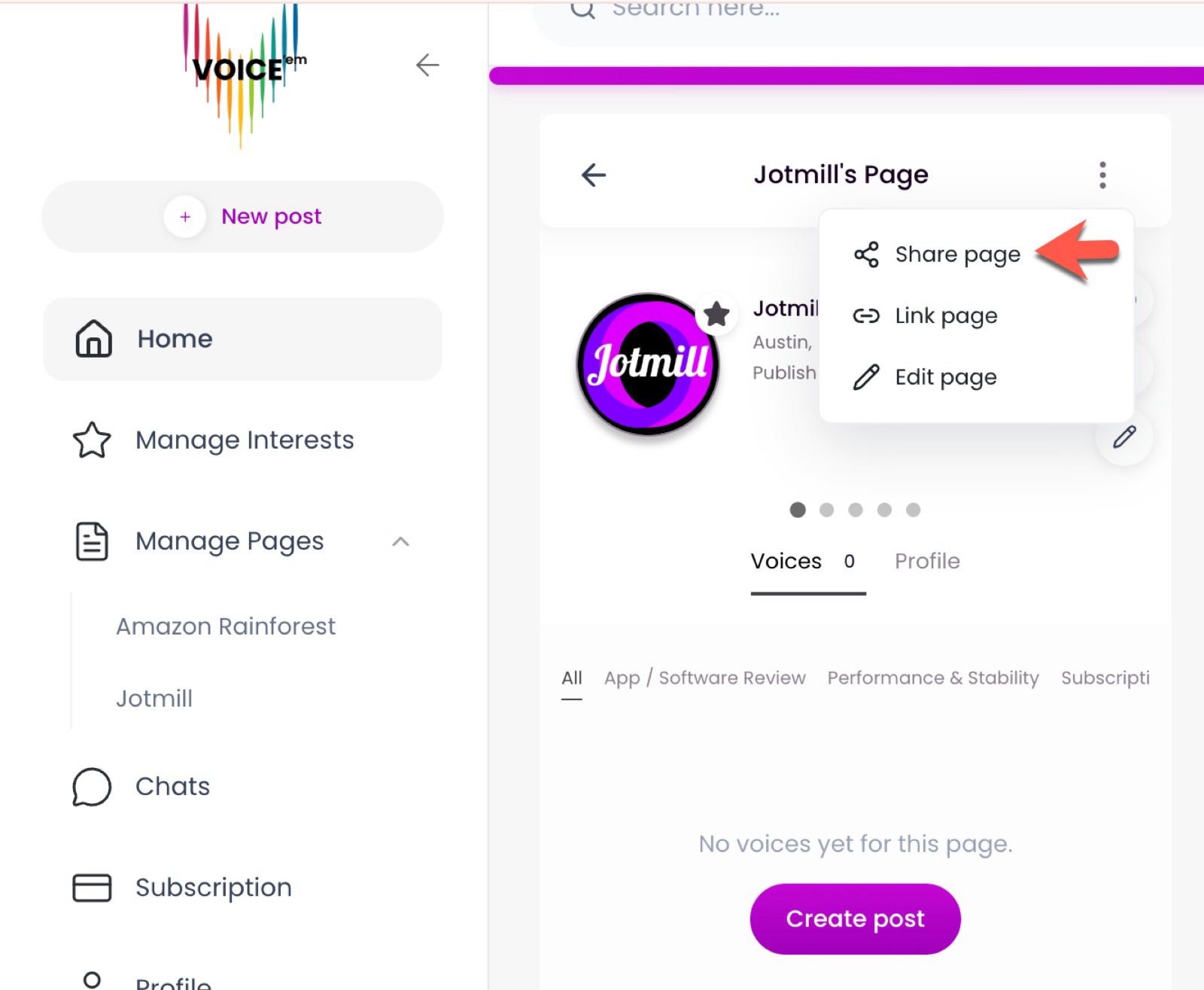
Create your free Voice’em profile, open it, click the three dots, and copy your “Share Page” link. Add this link to your website’s Contact Us button. When customers click it, they land directly on your Voice’em page, where they can post questions, bug reports, billing issues, or feedback under organized tags such as Inquiries and Complaints & Bugs. Your team can respond publicly or privately through Direct Messaging. See the full step-by-step guide in “Turn Contact Us Hyperlink and QR Code Into Free Customer Support on the Voice’em Platform — Real Examples for Any Business.”
12. How Do Physical Stores Use Voice’em Without a Website?
Voice’em automatically generates a QR Code for every business profile. Go to your service, product, or event profile page on Voice’em and scroll horizontally to see the unique QR Code with print and download buttons. Print it and place it at your entrance, counter, or tables so customers can scan it and reach your Voice’em page instantly. This lets brick-and-mortar stores collect feedback, answer inquiries, and stay connected — all without needing a website or IT setup. For detailed steps, read “Turn Contact Us Hyperlink and QR Code Into Free Customer Support on the Voice’em Platform — Real Examples for Any Business.”
13. How Can Anyone Advertise, Create Polls, or Run Surveys on Voice’em?
Anyone can advertise or create polls and surveys on Voice’em by signing up as a regular user and visiting the Ads section inside the app. From there, you can launch campaigns, create interactive polls, or run surveys directly on your profile page. For full details, refer to the official Voice’em advertising guide.

